Easybell Fiber with Mikrotik
A Zero To Hero Guide to Use an Mikrotik-Switch with easybell fiber business and Premium Services.
Used Hardware
- Mikrotik RB4011iGS+5HacQ2HnD (Router)
- Zyxel PMG3000-D20B (GPON SFP Module)
Note
For a simple setup I would try to use the MikroTik hAP ax S. There are three resasons why, (a) If you buy the SFP (MSRP 48€) and hAP ax S (MSRP 79$). You can get if for around 115€. Which is cheaper as a comparable FritzBox (e.g. 5530). Two things it is missing an 2.5GbE Port, cause we want to use the SFP Port here. As you only get 1GBit max it wont matter that much. And the complete DECT + Phone Think, but to be honest. I love the easybell Cloud Phone services and don't want proxy everything threw the FritzBox. My recommendation here is to use the Easybell App. (b) Compared to the MikroTik RB4011 you get Wifi 6 which is a more modern protocol for your devices. And (c) a smaller footprint when you don't need the extra ports.
Architecture

Requirements
- Internet Access via IPv4 and IPv6
- Firewall
- DHCP-Server
- DNS-Server
- WiFi
Preparation
In order to start with your adventure we need a bit of software, firmware and information before we are ready.
Software & Firmware
Okay, before we can start we should install the mangament software for our Mikrotik Router (called WinBox) and it is helpful to get the latest firmware for your router as well. I recommend to download both main and external packages for our specific cpu architecture.
Information
Okay, you have ordered a (business) fiber access from easybell. This means in order to connect to easybell you have to provide them with a Modem ID. You can do that at the first day or beforehand. (Keep in mind that it does require some time until the Modem ID is configured on the providers side). In order to get this ID which is burned into your GPON Adapter you have to look onto the Zxyel PMG3000-D20B you want to use. It is a 16-character long string of hexadecimal characters.
When you're logged into the easybell system get your PPPoE username and password (label as DSL Zugangsdaten).
Assumtions
Everything is bougth of the shelf and reset to the default settings.
Zxyel PMG3000-D20Bis inserted into the SFP-Port of theMikrotik RB4011iGS+5HacQ2HnD- GPON Cable is pluged into the passiv ONT and into the
Zxyel PMG3000-D20B - Client Computer is plugged into
ETH2 Mikrotik RB4011iGS+5HacQ2HnDhas power
Configuration
First Connetion to the Router
Normally, Mikrtik router come with a pre configured DHCP so you should get a IP automaticlly configured. When that happend you can check to access the router by opening Mikrotik Router.
Set your new password. Default RouterOS has no preconfigured password (because everyone knows what there are doing when they buy that kind of hardware). So please set a new password to protect the access to this device.
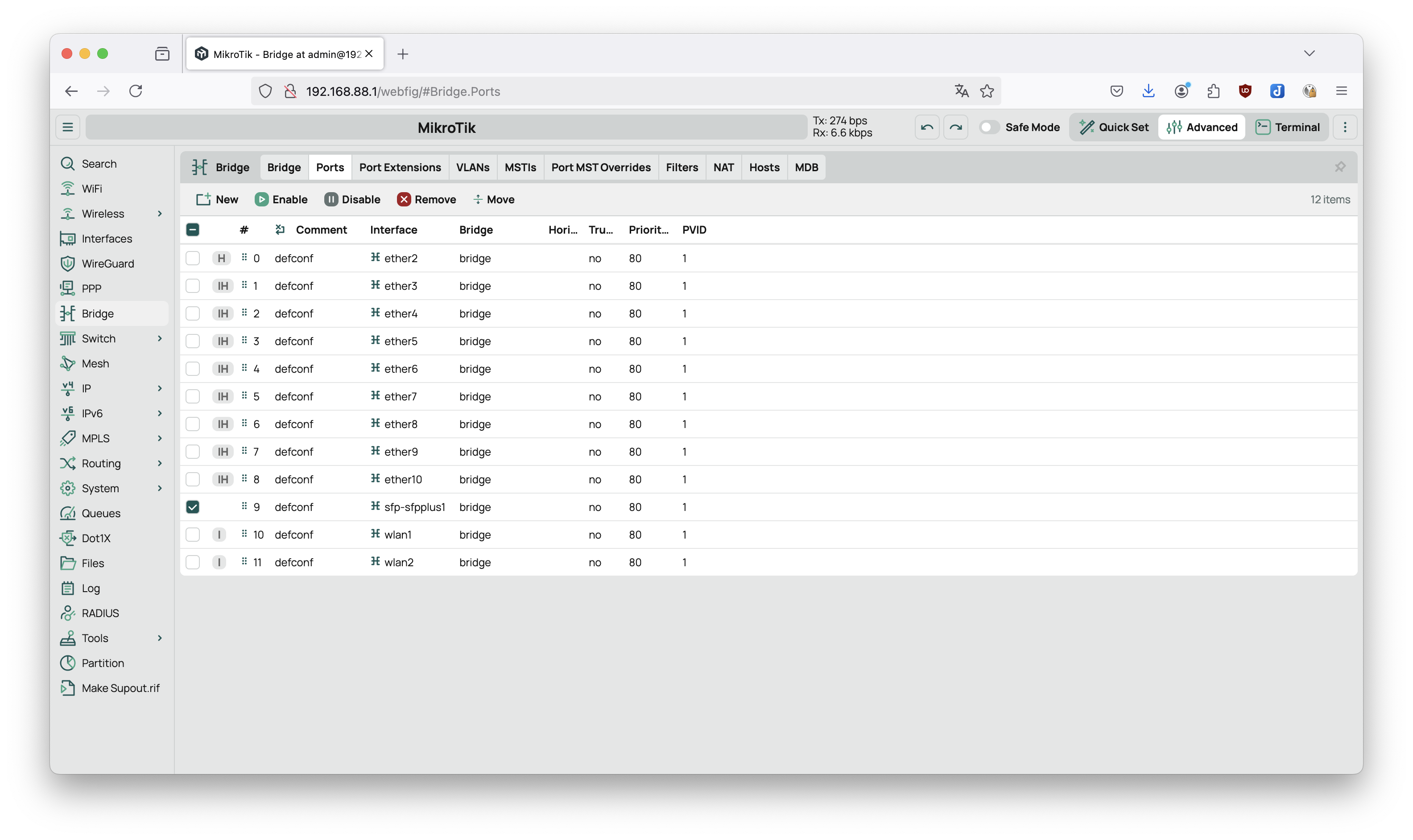
Okay, first setup up the correct configuration. In my default config the SFP port is mapped to the bridge network. That won't work. So lets delete this entry by going to Bridge->Ports and find the entry based on the following screenshot.
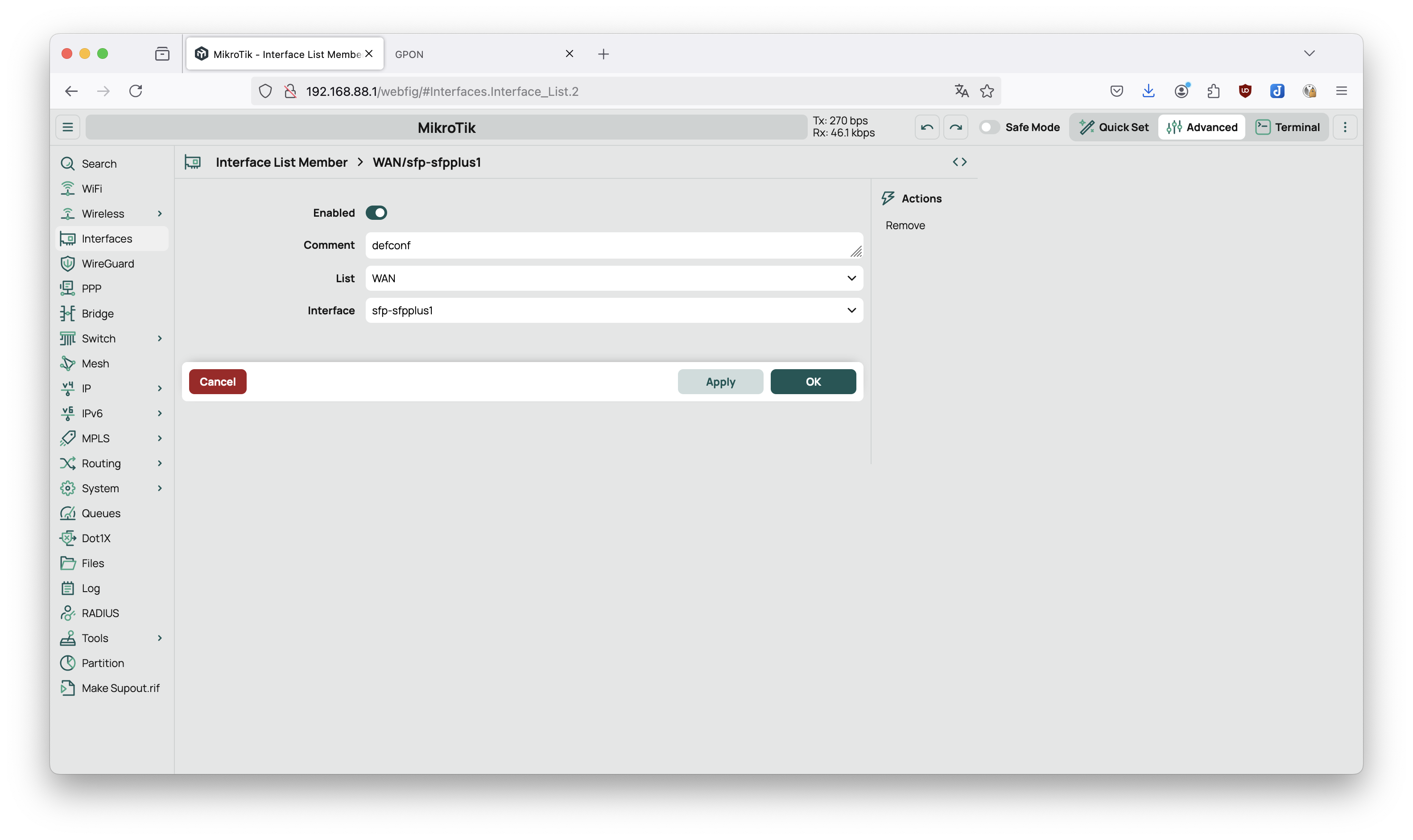
In order for RouterOS to know which port is considers WAN we have to swap the eth1 with the sfp-sfpplus1. Go to Interfaces->Interface List and change the interface for WAN accordingly.
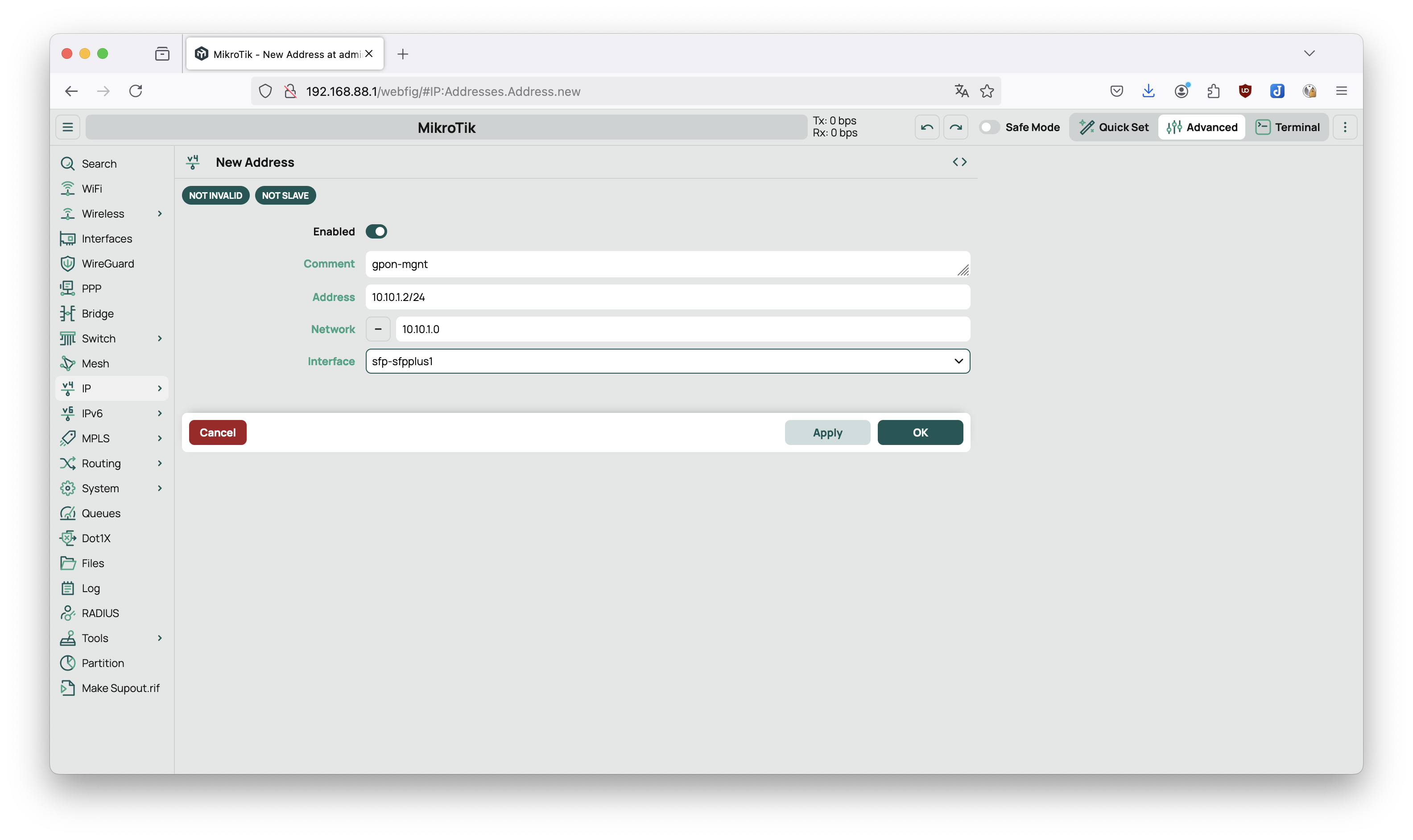
Next we want to access the WebUI of the GPON Adapter. For that we need to configure the correct IP-Address. That is done inside IP->Addresses->New and filled with the following values:
Now you should be able to open the GPON Web UI Username is admin and passwort is 1234 by default. There go to setup and paste your SLID (in easybell labeled as Glasfaser ID) into the form and select the ASCII Mode (Note: I think there is a type here because it says ASSCI). This might not be required!
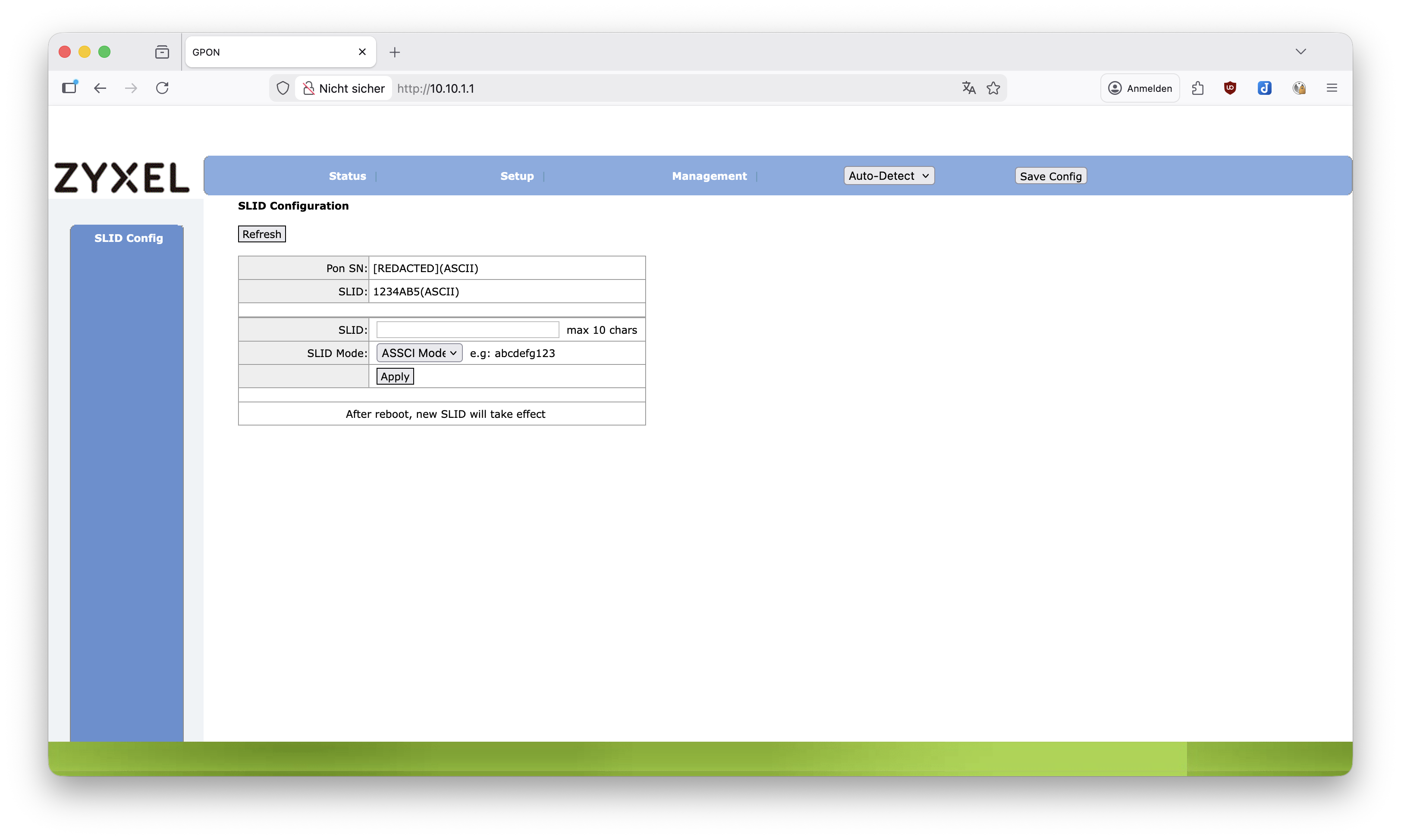
Restart your Router now.
Via the GPON Web UI you can check if the fiber is connected with the other (active) side. It sould say
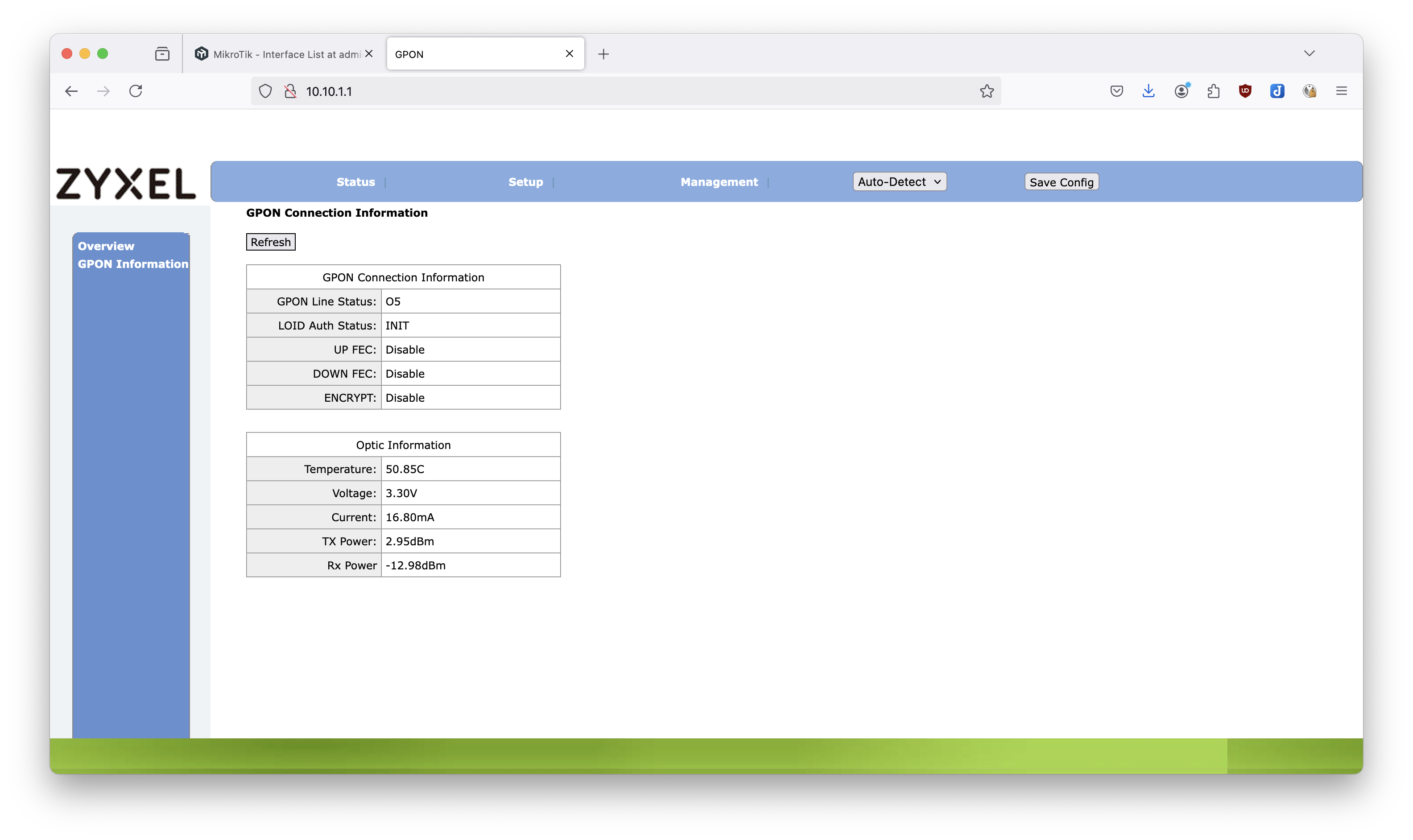
Now that we have access to the provider we have to authenticate us as we are against them. For that we use PPPoE. But before we can do that we have to configure a VLAN on top of the sfp-sfpplus1. (Story: easybell uses Telekom fiber and one little quirk they do is that they required the VLAN for the PPPoE Client set to 7). Go to Interfaces->New->VLAN and fill with the following values:
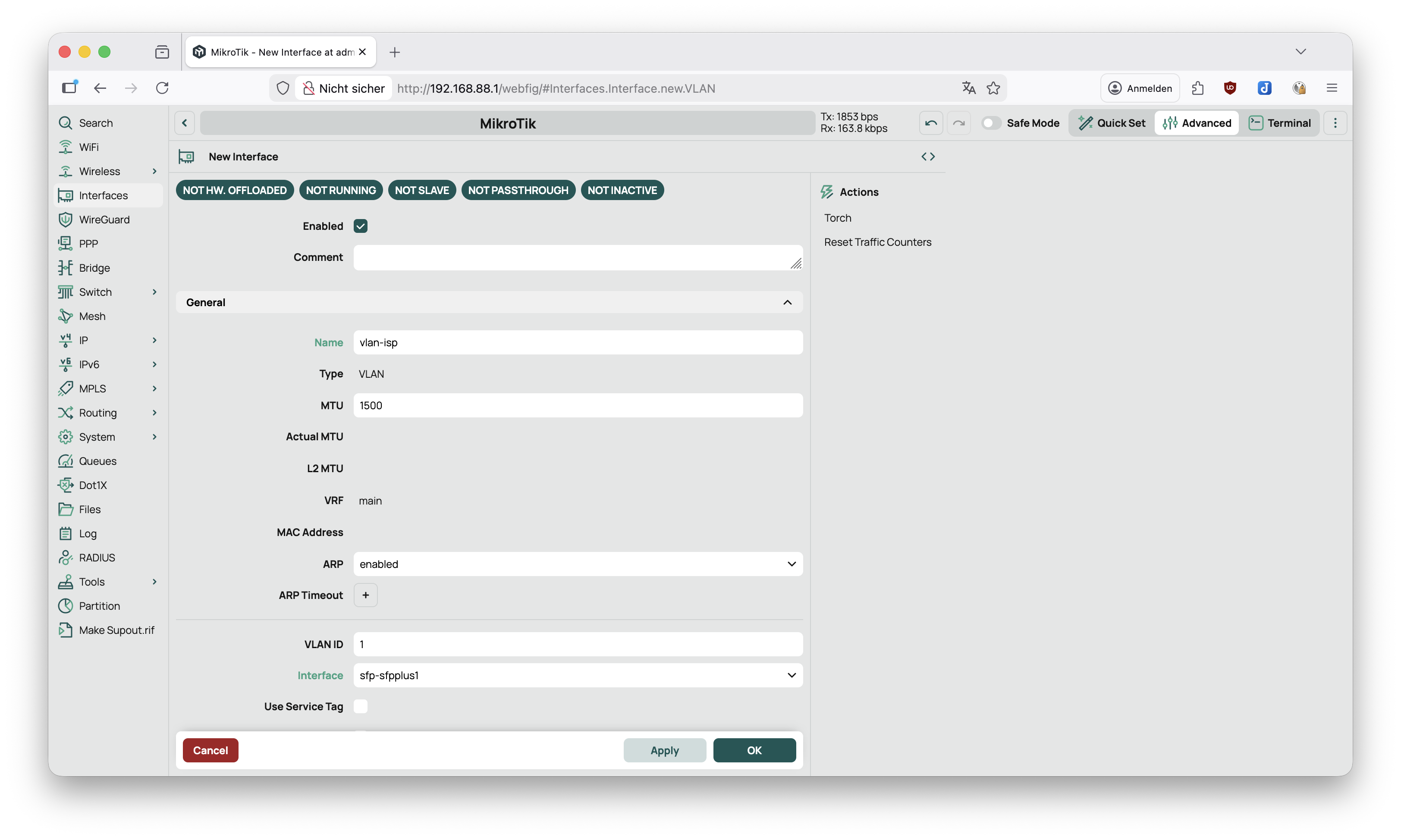
Now that's out of the way we can proceed with configuring the PPPoE-Client. Go to Interfaces->New->PPPoE Client and fill out the following values:
name: pppoe-out1
interface: vlan-isp
user: <Look in your notes>
password: <Look in your notes>
use-peer-dns: true
Okay now the router should have internet but unfortunatlly you don't. (Have you heard of a firewall well I guess) The pppoe-out1 is currently not labled as WAN interface. The default firewall rules are based on the two labels LAN and WAN. You know what you have to do. Go to Interfaces->Interface List and change the interface for WAN accordingly.
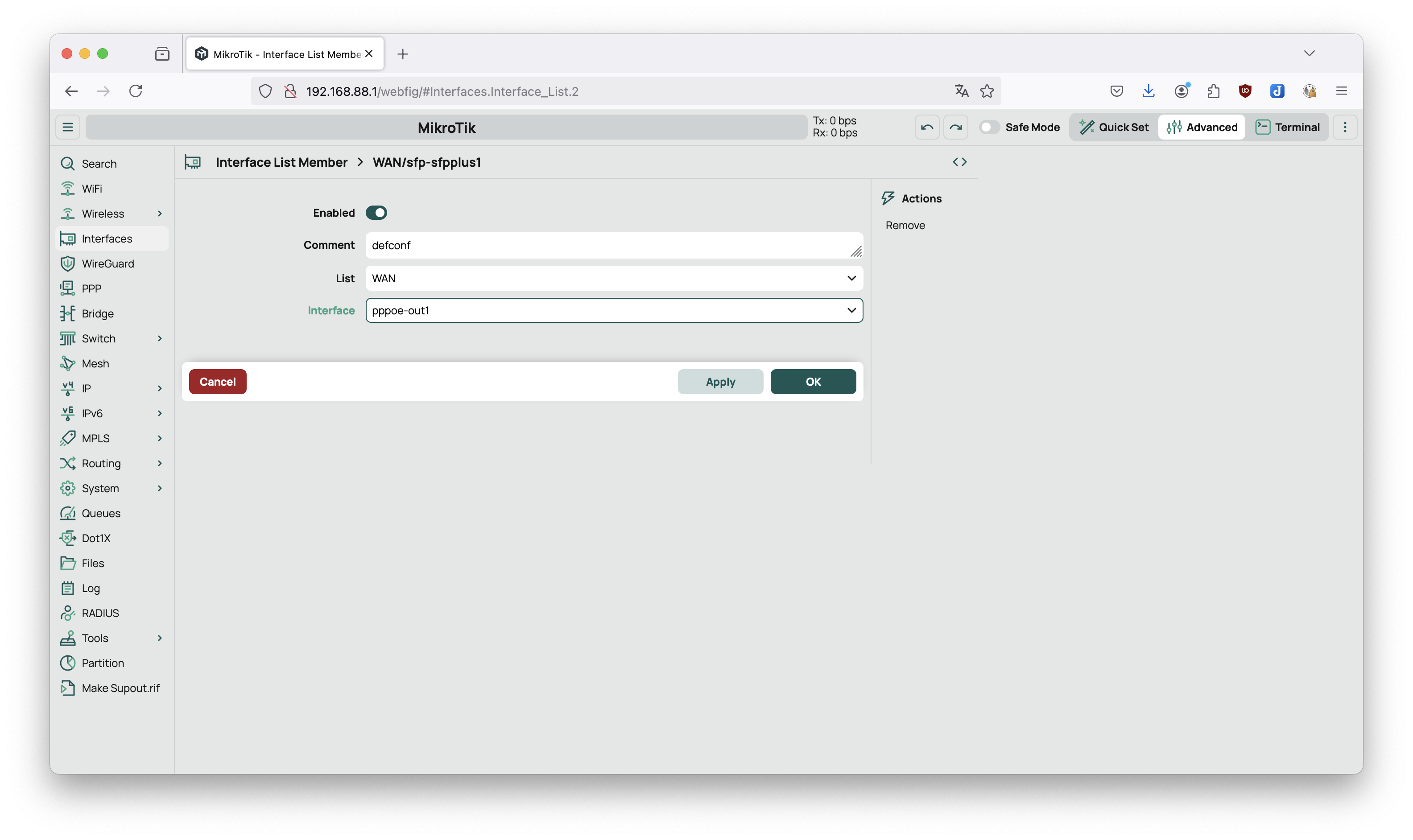
Okay lets check it do we have access to Google
NAT for Zyxel
If you want to connect to your Management UI of the Zyxel SFP Module you could add a NAT configuration.
Go to IP->Firewall->NAT->New and fill out the following values:
This configuration however shouldn't be enabled all the time or it needs adjustments if used in a business environment because now everyone could (a) connect to the web ui (a), (b) restart the SFP Module and © connect to the ssh shell. So if you are not sure disable the NAT-rule as long as you don't need to connect to Zyxel UI.
Let's do it IPv6
The following part to configure IPv6 is based on a Forum Post which mentions the process with RouterOS v6.
Go to IPv6->ND->Interfaces and change the default configuration according the following values:
Go to IPv6->DHCP Client->New and add the configuration according the following values:
Go To IPv6->Addresses->New and add the configuration according the following values:
Go To IPv6->Firewall->New and and the configuration according the following values:
Problem
Occasional disconnections on PPPoE and SFP+ port?
Behaviour
When you look into the logs you see that the PPPoE Session hase constant (in my case multible times within an hour) reconnections. What I saw was that the message interface,info sfp-sfpplus1 link down shows before pppoe,debug vlan-isp: terminating sessions: interface state changed. After some analysis I come to the conclusion that the problem is between the connection of the SFP-Module and the MikroTik Router.
Solution
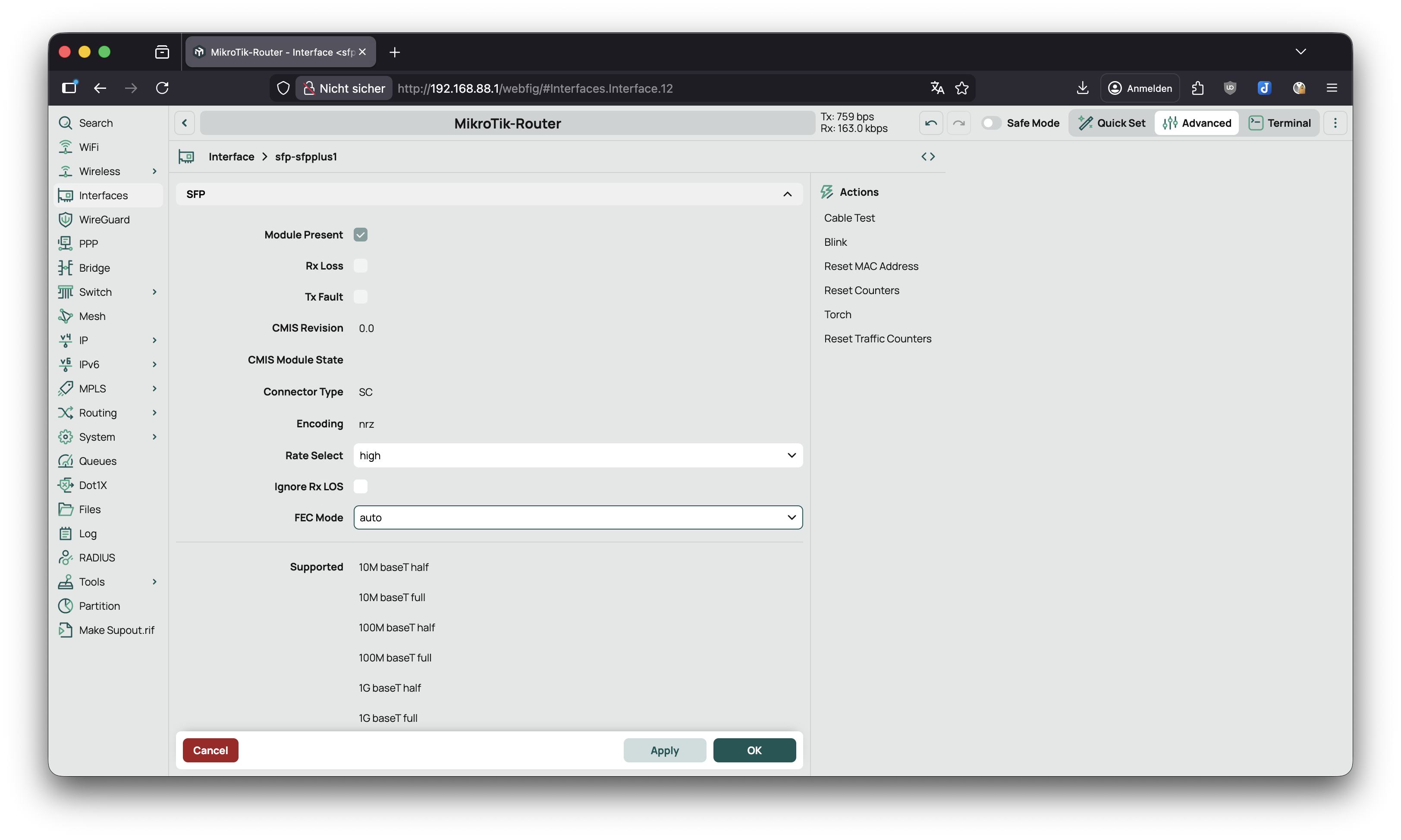
The following values show my current configuration for the sfp-sfpplus1 interface. Go to interfaces->sfp-sfpplus1 and change the confiugration accordingly.
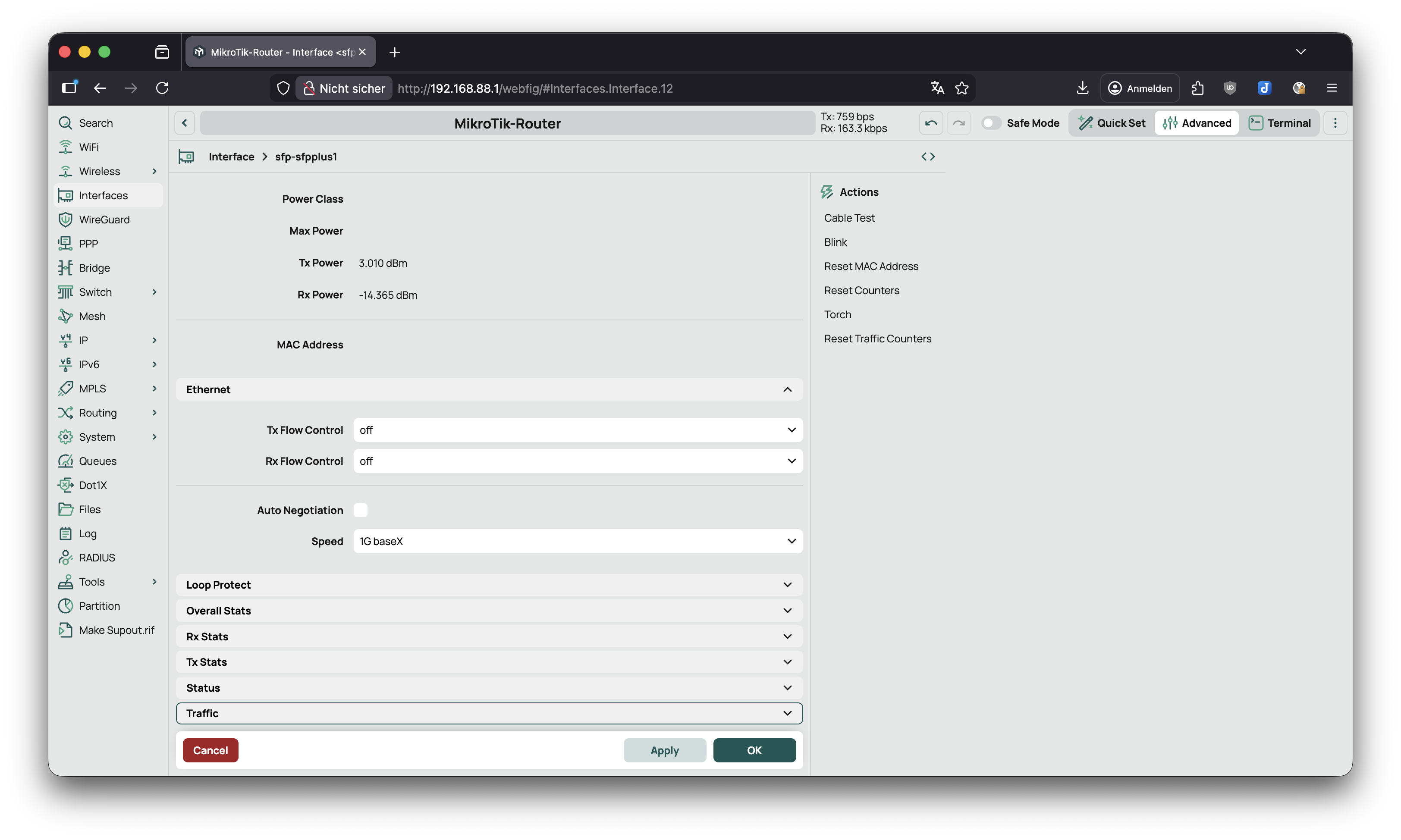
Some important information if you use a MikroTik Router with 2.5G-support then you could try to check if speed: 2.5G-baseX does work for you. Because even if you order a 1GBit fiber 1G-baseX gives you only ~800MBit when checking it via fast.com. You can check the support here: